
Vulcan Reference Manual

  • Welcome to Vulcan
  • Features
  • Production Workflow
    • Preparation
    • Jogging and Homing
    • Create
    • File Management
    • Select Program
    • Edit NC Code
    • Edit Laser Technology
    • Edit layout
    • Simulation run
    • Work offsets
    • Run
    • Re-entry
  • Laser Technology Tables (LTT)
    • Terminology
    • Laser Data items
      • Piercing
      • Multistage Piercing
      • Cutting
      • Special Processes
    • Modifying Laser Data
    • LTT Management
    • Ramp Cycles
    • FlyCut
    • Acceleration while cutting (DCA)
  • Technology functions
    • Vaporize Sheet
    • Nanojoints
    • PierceLine Sensor
    • Frog Jumping
    • Analog Gas Calibration
    • Cutting Tools
    • Dynamic Focus Control (DFC)
  • Control Elements
    • Lubrication Cycle
    • Protective Glass Monitoring
    • Scrap Cut
    • Go To Sheet Origin
    • Height Sensor Calibration
    • Nozzle Centre
    • Target Shot
    • Gas Purge
    • HC Manual Set Point
    • Go To Park Position
    • Nozzle Clean & Height Sensor Calibration
    • Edge Detection
    • Focus Comb
    • Focal Distance
    • Pilot Diode Positioning
  • Production plan
    • Create a production plan
    • Modification
    • Run a production plan
    • Running sequence
    • sheet loading
    • Material stock
  • Advanced functionality
    • Nozzle Changer
    • Pallet changer settings
    • Status light
    • Suction cup layout
    • Automation Interface
    • KL59, Laser & Optics
    • Automated corner optimization
  • Programming manual
    • DIN Programming
    • LST Programming
  • Machine configuration
    • Laser database
    • Work offsets
    • Machine settings
  • Experimental features
    • Camera based Nozzle Centering
    • Automated Focus Comb
    • Camera based part placement
    • High Power Options
    • Direct connection to Praxis
  • Service settings
    • General settings
      • Log files
      • Backup settings
    • Calibration of the pilot laser
    • Service settings
    • PLC functions for service's maintenance/ repair work for KL59
    • DCA settings
    • Info messages
  • Troubleshooting
    • Installation
    • Work offset
    • Error data, backup, restore
    • Frequent collisions
    • Laser issues
    • extreme small contours
Troubleshooting
/
Installation

Installation

Pre-requisites

Vulcan pre-setup should be installed once, before installing the Vulcan installer. This will install .Net 8 and redistributable required by Flux and Vulcan.

Pre-setup can be downloaded from the below link:

VulcanPreSetup.exe

Graphics requirement

Make sure that computer’s open graphics library version should be above 3.2 to work.

If the graphics card does not meet this requirement, application will prompt the following message:
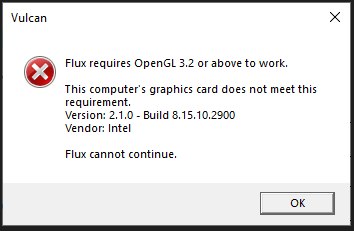
requirement prompt

Setup Installation

Install the required version of Setup.Vulcan.exe
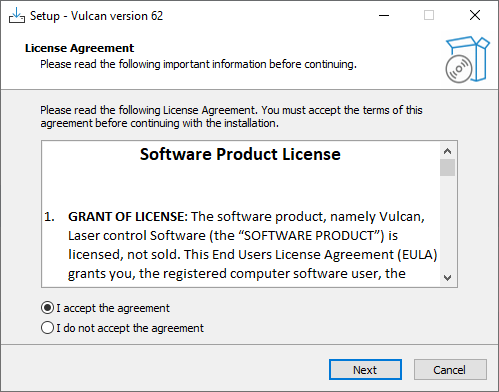
Installation

License

To use Vulcan, a serial key is required. On opening Vulcan, a registration window appears where the serial key needs to be entered.

An active internet connection is required for activating the license.

For a new license, send a license request mail using your official mailing address to deepakraja.shanthakumar@trumpf.com

If the internet connection is not available or the license server is not reachable due to a firewall, offline activation is possible.

  • Enter the serial key in the registration window. Connection to server failed error message will be displayed.

  • Send the file Vulcan.request found in folder C:\ProgramData\Metamation\Vulcan\Data to deepakraja.shanthakumar@trumpf.com along with the serial key used.

  • After receiving Vulcan.lock file place it in the above folder. This will activate the license.
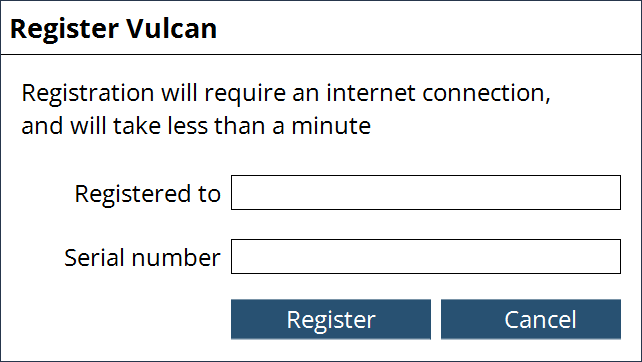
Register vulcan

Save Backup

To save backup from the machine. Click Diagnostics diagnostics option and select save backup.
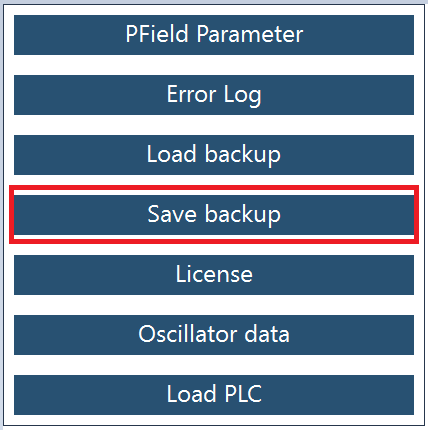
save backup

Select the required files and save it.
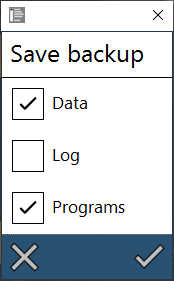
save

Application will prompt a confirmation message along with the location path details. Files will be saved in .Zip format.
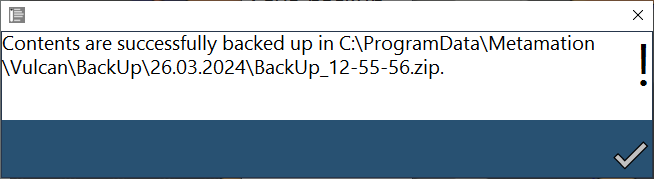
zip format

If the backup file is not in correct format, below mentioned popup message will occur.
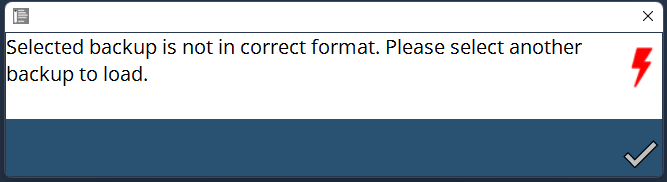
format

Load Backup

To load backup in the machine. Click Diagnostic diagnostics option and select load backup
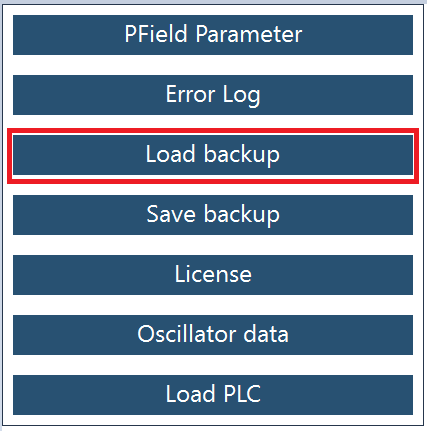
backup file

Select the backup file and click done.
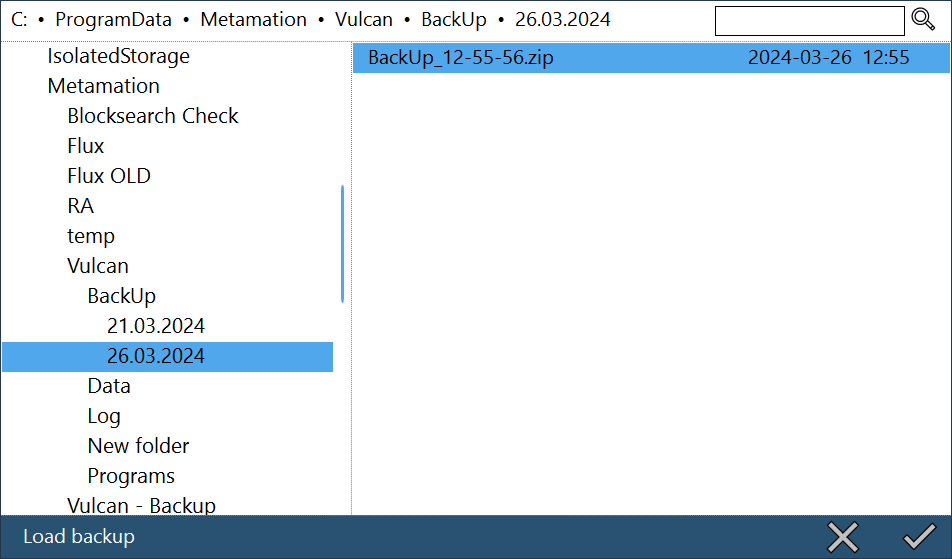
backup loaded

Once backup Is loaded, application will prompt a confirmation message to restart Vulcan.
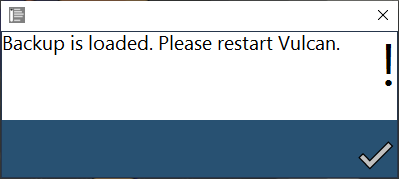
restart vulcan

Make sure that the respective data according to the HMI version is loaded.
Example

In Vulcan 62, PLC files of 2D LCM LIB V2.39 is to be used.If data loaded are not respective according to the HMI version, application will prompt a message as below,
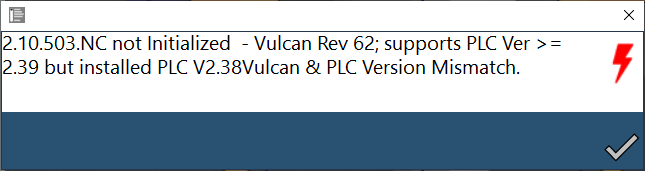
image

Load PLC

To load PLC files, Click media/image5 diagnostics option and select load PLC.
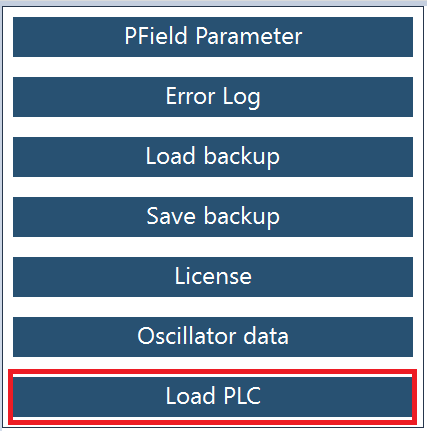
image14

Select the respective files and click done. Application gets restart automatically with the newly loaded PLC.
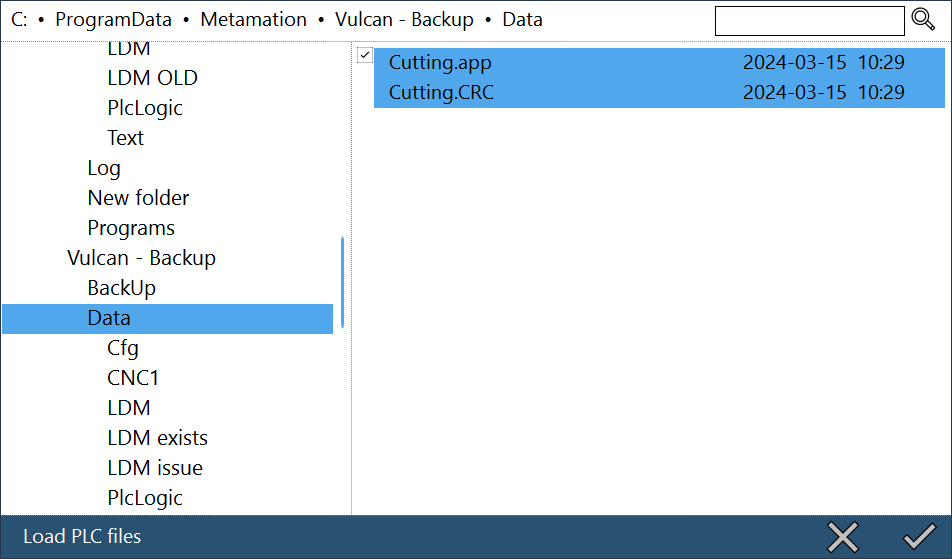
image15

Contents

  • Pre-requisites
  • Graphics requirement
  • Setup Installation
  • License
  • Save Backup
  • Load Backup
  • Load PLC
Troubleshooting Work offset

      Copyright © 2024 by Trumpf-Metamation. All rights reserved.

    Compiled by Bento