
Vulcan Reference Manual

  • Welcome to Vulcan
  • Features
  • Production Workflow
    • Preparation
    • Jogging and Homing
    • Create
    • File Management
    • Select Program
    • Edit NC Code
    • Edit Laser Technology
    • Edit layout
    • Simulation run
    • Work offsets
    • Run
    • Re-entry
  • Laser Technology Tables (LTT)
    • Terminology
    • Laser Data items
      • Piercing
      • Multistage Piercing
      • Cutting
      • Special Processes
    • Modifying Laser Data
    • LTT Management
    • Ramp Cycles
    • FlyCut
    • Acceleration while cutting (DCA)
  • Technology functions
    • Vaporize Sheet
    • Nanojoints
    • PierceLine Sensor
    • Frog Jumping
    • Analog Gas Calibration
    • Cutting Tools
    • Dynamic Focus Control (DFC)
  • Control Elements
    • Lubrication Cycle
    • Protective Glass Monitoring
    • Scrap Cut
    • Go To Sheet Origin
    • Height Sensor Calibration
    • Nozzle Centre
    • Target Shot
    • Gas Purge
    • HC Manual Set Point
    • Go To Park Position
    • Nozzle Clean & Height Sensor Calibration
    • Edge Detection
    • Focus Comb
    • Focal Distance
    • Pilot Diode Positioning
  • Production plan
    • Create a production plan
    • Modification
    • Run a production plan
    • Running sequence
    • sheet loading
    • Material stock
  • Advanced functionality
    • Nozzle Changer
    • Pallet changer settings
    • Status light
    • Suction cup layout
    • Automation Interface
    • KL59, Laser & Optics
    • Automated corner optimization
  • Programming manual
    • DIN Programming
    • LST Programming
  • Machine configuration
    • Laser database
    • Work offsets
    • Machine settings
  • Experimental features
    • Camera based Nozzle Centering
    • Automated Focus Comb
    • Camera based part placement
    • High Power Options
    • Direct connection to Praxis
  • Service settings
    • General settings
      • Log files
      • Backup settings
    • Calibration of the pilot laser
    • Service settings
    • PLC functions for service's maintenance/ repair work for KL59
    • DCA settings
    • Info messages
  • Troubleshooting
    • Installation
    • Work offset
    • Error data, backup, restore
    • Frequent collisions
    • Laser issues
    • extreme small contours
Production Workflow
/
Jogging and Homing

Jogging and Homing

Jogging

The axis can be traversed on this page. The current positions of the X, Y,and Z axes can also be viewed here.
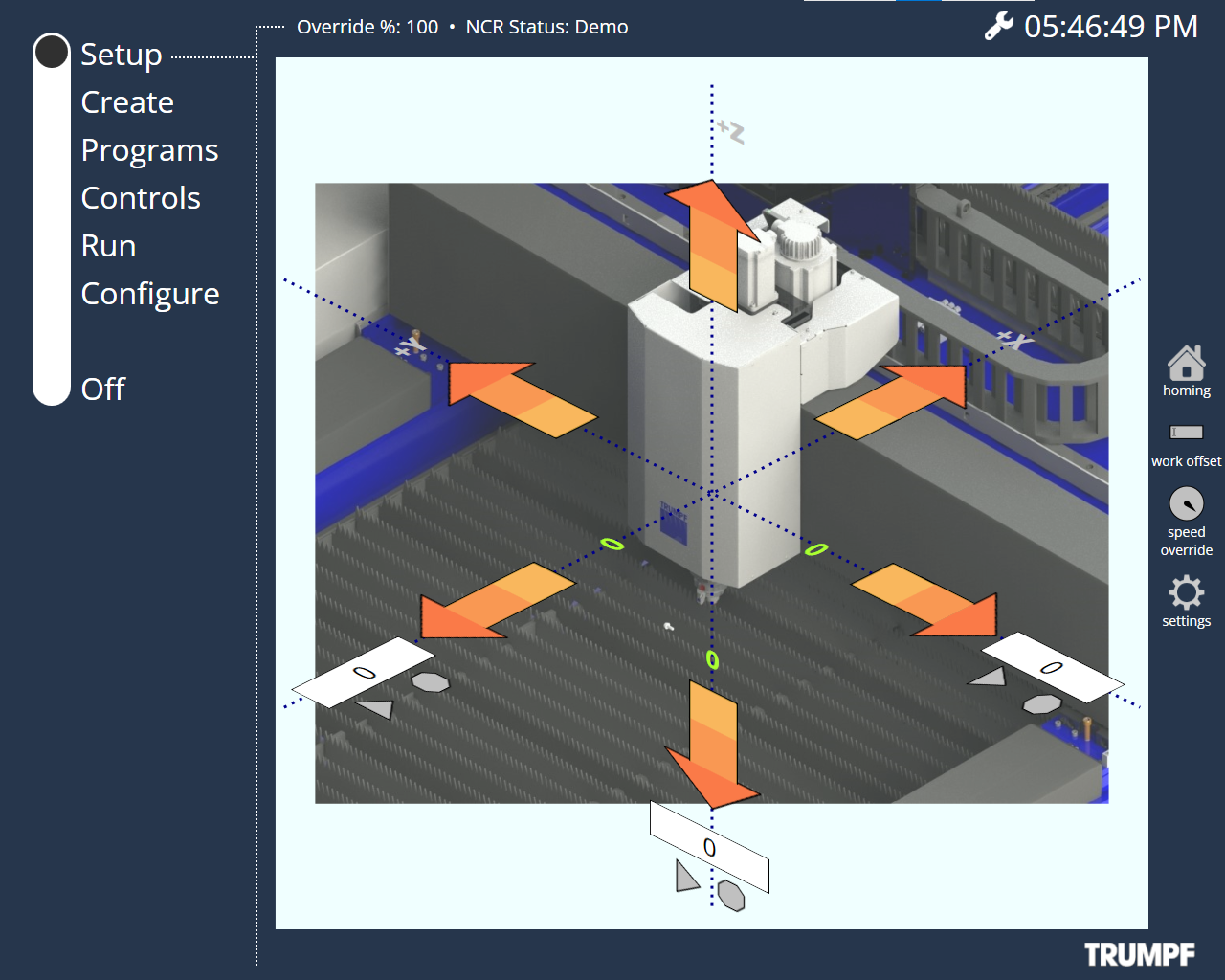
Setup page

The following traversing types are available:

  1. Modal traversing

  2. Incremental traversing

  3. Target point traversing

Modal Travel

A mouse down for over 300ms will start a modal movement until the user lifts the finger/mouse (long click). Depending on where the user clicked on the arrow, the machine will move at different speeds. The speed for modal travel can be configured in settings.

Step Travel

A click (mouse down immediately followed by mouse up, within 300ms) will move it in steps. Depending on where the user clicked on the arrow, the axis will move in short, medium, or large steps. The step size can be configured in settings.

Target Point Travel

The user can specify the target point of the selected axis in the input field. Press the START key to start the movement. The movement of the axis can be stopped at any time with the STOP key.

Speed Override

The user can use the Override + and Override - to influence the speed of axis movements (In percent).
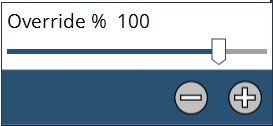
Override window
  • Override + : Increase override percentage for the configured/set axis or path speed. Above 10%, the value is changed in 10% increments, below 10% it is changed in 1% increments.

  • Override - : Reduce override percentage for the configured/set axis or path speed. Above 10%, the value is changed in 10% decrements, below 10% it is changed in 1% decrements. The user can also use the slider to increase or decrease the speed.

Homing

Axis referencing can be done in two ways.

  • Automatic : If this function is activated, automatic reference point traversing is initiated by pressing the START key. Reference point traversing can be cancelled at any time by pressing the STOP key.

  • Manual : If this function is selected, manual reference point traversing of an individual axis can be initiated. Select the required axis and press the START key to initiate traversing. Reference point traversing can be cancelled at any time by pressing the STOP key.
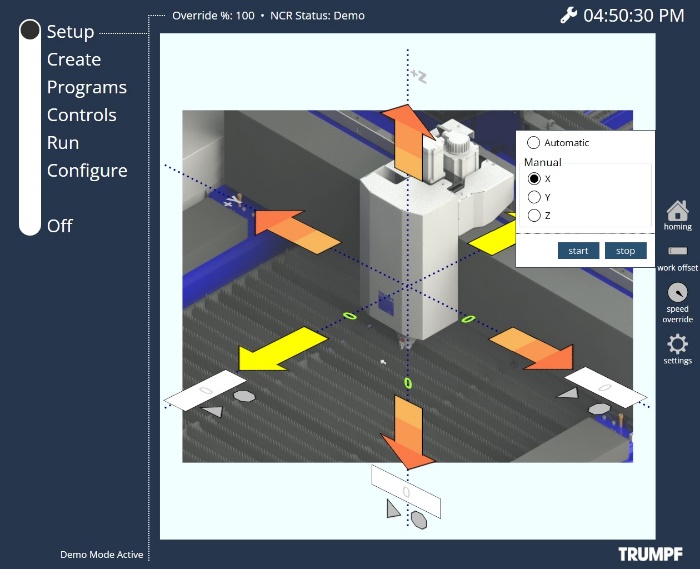
Homing window

Settings

The user can configure the step size (for step travel) and speed (for modal travel) for the specific regions on the arrow in settings.
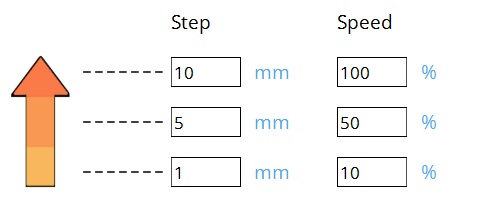
Setting window

Contents

  • Jogging
  • Modal Travel
  • Step Travel
  • Target Point Travel
  • Speed Override
  • Homing
  • Settings
Preparation Create

      Copyright © 2024 by Trumpf-Metamation. All rights reserved.

    Compiled by Bento